Step away and stay connected
Keep Code Link running on your awake PC, then connect Android over mobile data or another Wi-Fi network. No rented server or separate VPN app required.
 Code Link
CODE LINK 2.0 · WINDOWS + ANDROID
Keep builds, tests and Codex running on your PC. Read output, send input and handle approvals from your phone or tablet over the internet. Scroll through history, open landscape fullscreen and get an alert when a task or batch finishes.
Keep Code Link running on your awake PC, then connect Android over mobile data or another Wi-Fi network. No rented server or separate VPN app required.
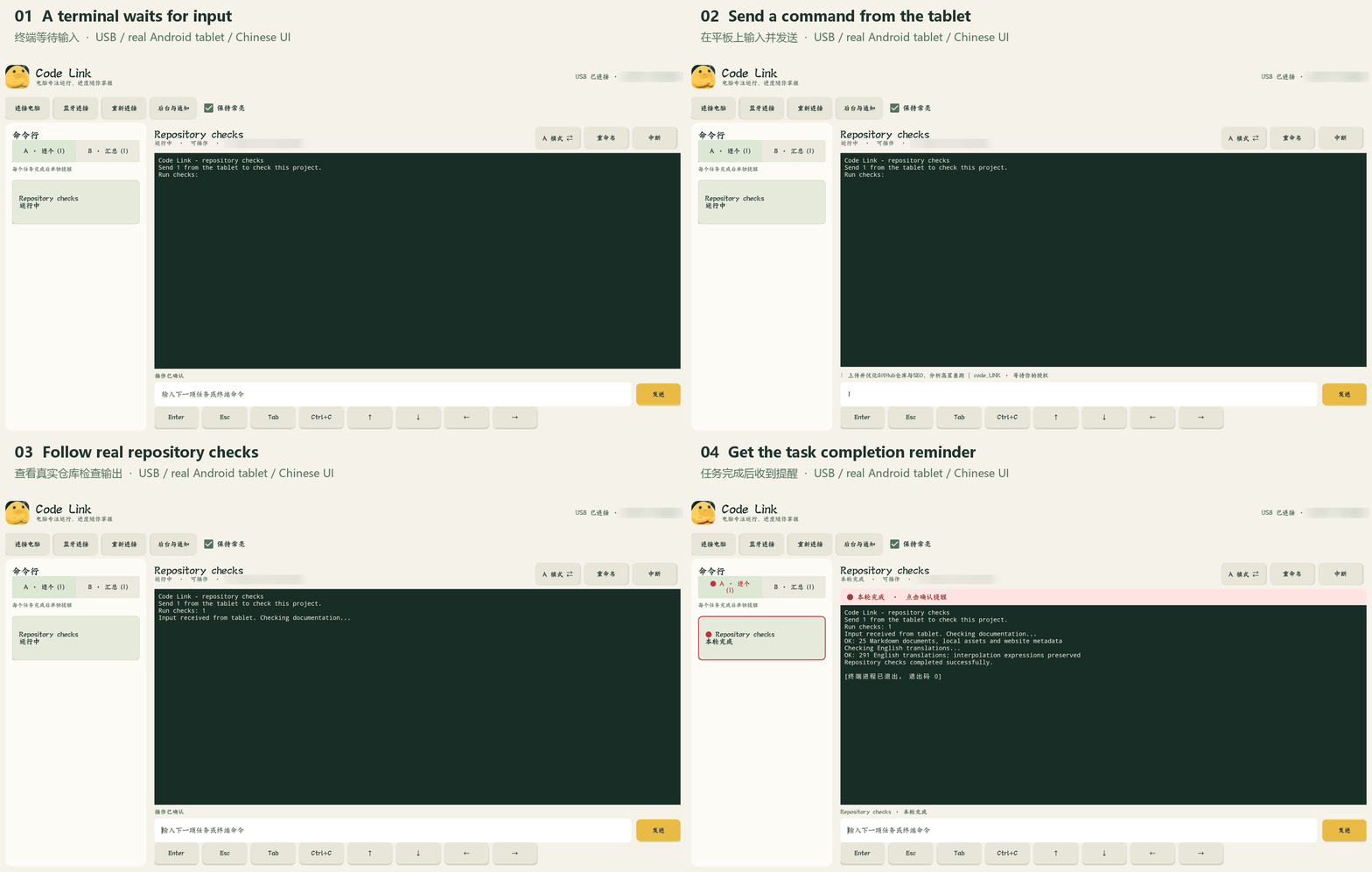
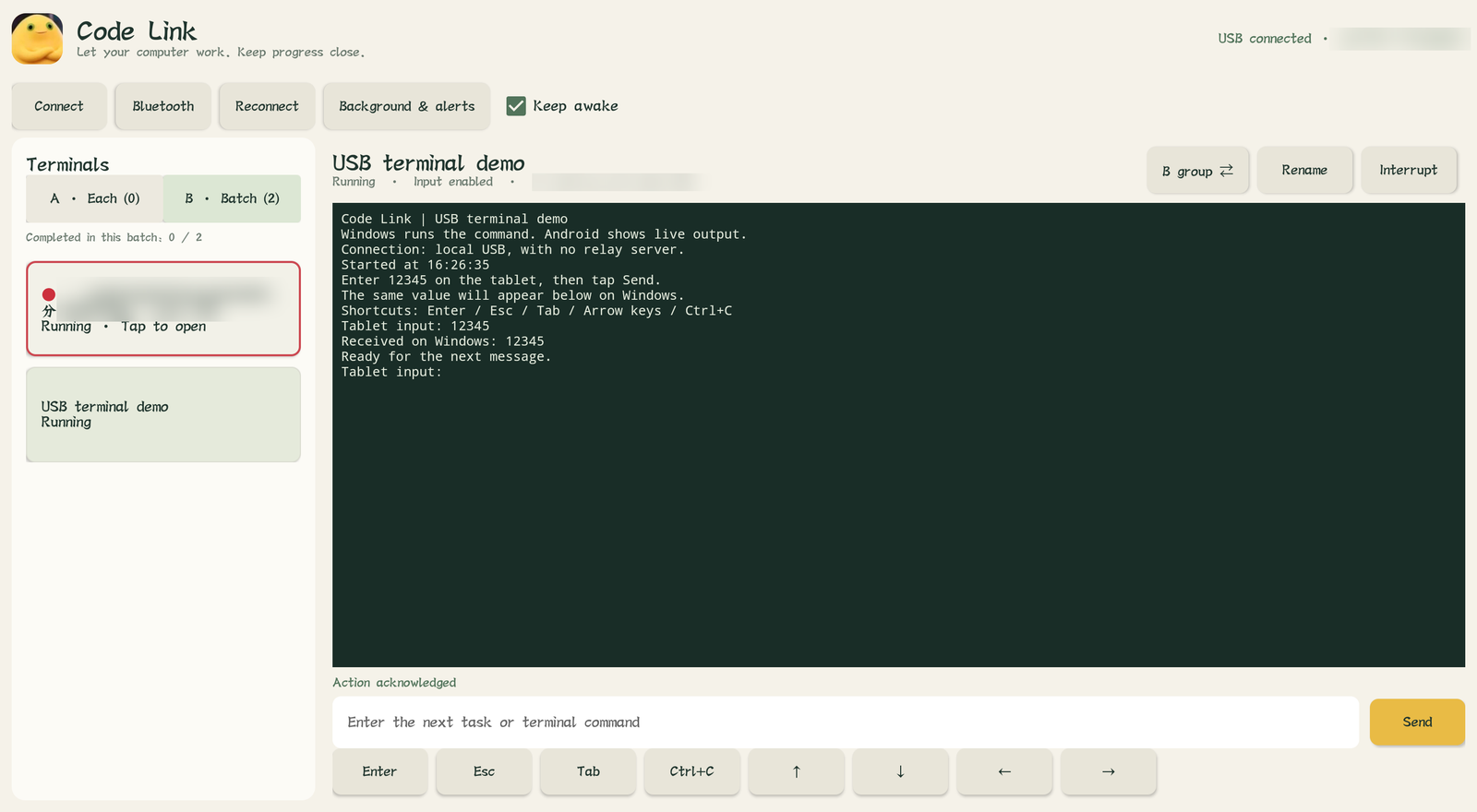
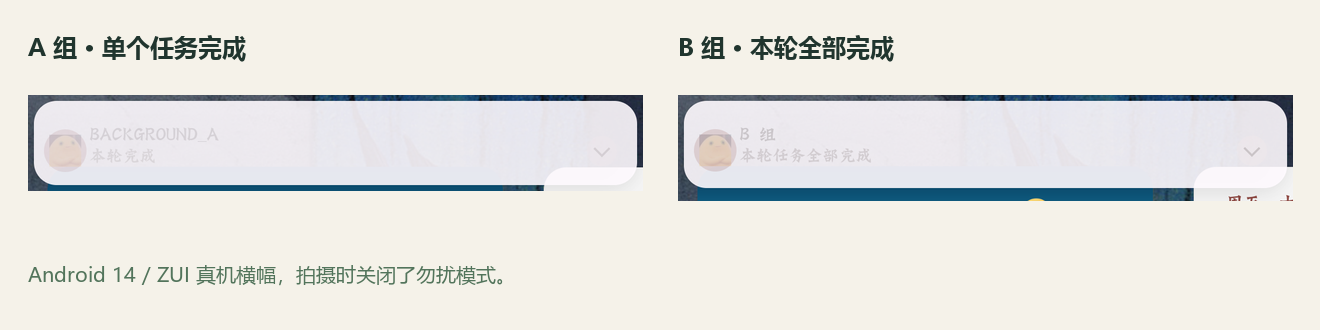
A alerts when each task finishes. B waits for every participating task to complete successfully. Approval requests alert immediately in both groups.
Open landscape fullscreen from the top right, then return from the top left. Scroll the terminal and tap interactive text buttons. Requests resolved on the PC clear automatically.
START REMOTELY
Windows x64 and Android 9+ on ARM64 phones or tablets. The Windows v2.0.0 ZIP includes the runtime. Keep your PC on and awake while accessing it remotely.
Read the installation guide →Extract the complete Windows ZIP and run CodeLink.exe. Install the APK on Android and allow notifications.
On Windows choose Pair device → Enable remote access and wait for the node to be ready. Scan the invitation on Android or import its text. Invitations expire after 10 minutes.
Select a terminal and online device, then share it with Android. Switch the phone to mobile data and send echo hello in a test terminal to check both directions.
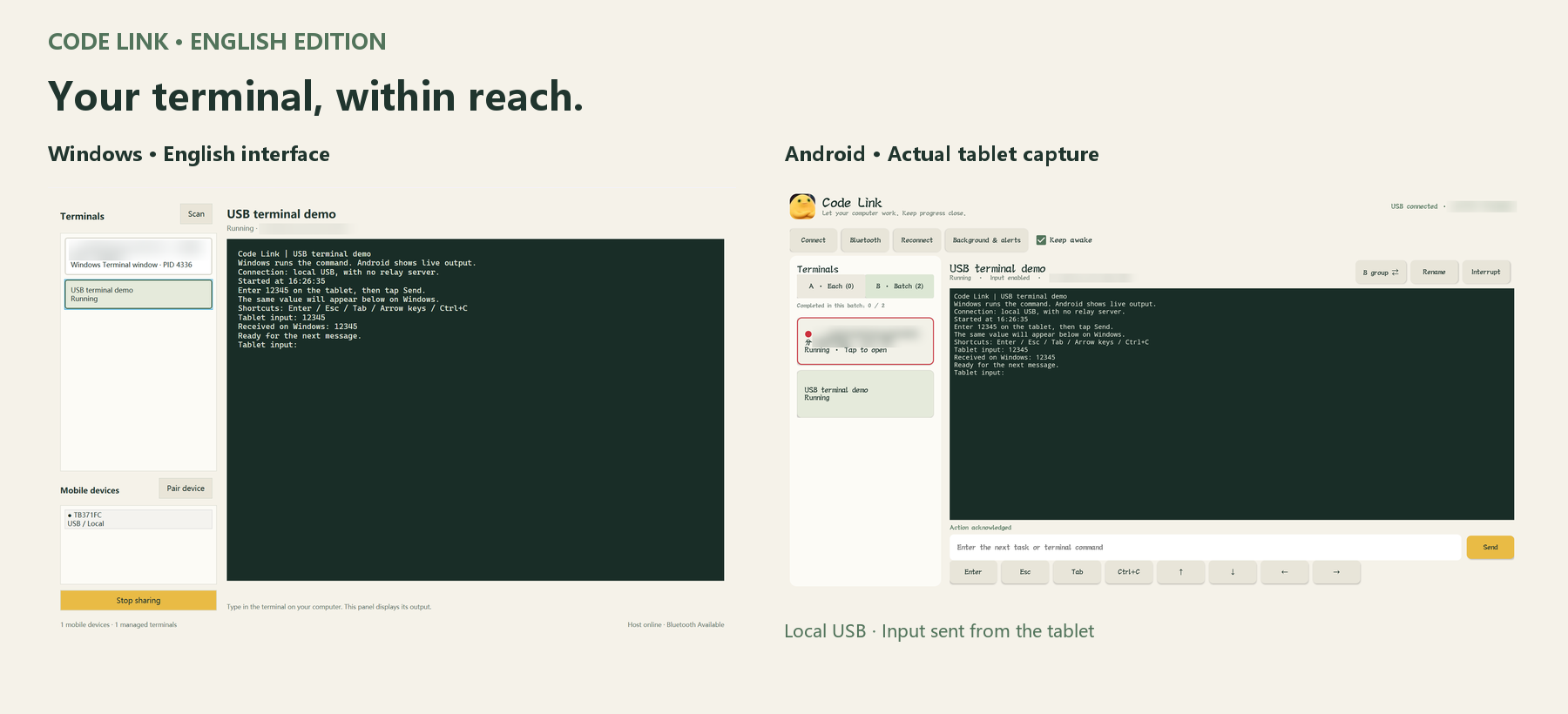
Check progress away from the PC or keep a spare tablet beside your parallel builds. Connect existing Windows terminals directly. USB, Bluetooth and LAN remain available for local use and as backup connections.
Bluetooth is also supported: pair in system settings, then choose More → Bluetooth on Android. For first-time app pairing, choose Pair device → Bluetooth in Windows and scan the invitation; no prior USB connection is required. Bluetooth instructions →
Check off each step as you complete it. This checklist stays on this page; it does not inspect your devices.
0 / 5 steps checked
Extract all Windows files and open CodeLink.exe. Keep the included runtime files beside the EXE; no separate runtime install is needed. Install the Android APK and open Code Link.
Use a data cable, unlock Android and allow this computer's debugging request. If the tablet is absent, try another cable or USB port. In the Windows app folder, run tools\adb.exe -P 5037 devices -l, then try port 5038. unauthorized means Android needs your confirmation.
In Windows, choose Pair device → Connect over USB. Keep both apps open. Pairing runs over the cable; no manual IP entry is needed.
Tap a terminal on Android. Or select a terminal and an online device in Windows, then choose Share with device. Use a test terminal for your first input.
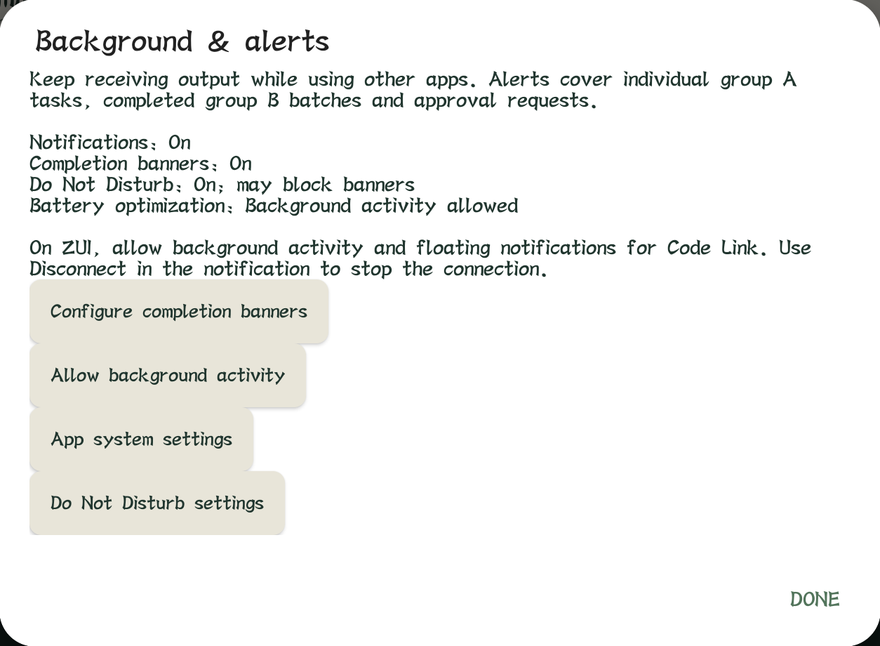
Send echo hello and press Enter if needed. You should see hello in the selected terminal. For alerts, open Background & alerts on Android and allow banners and background activity.
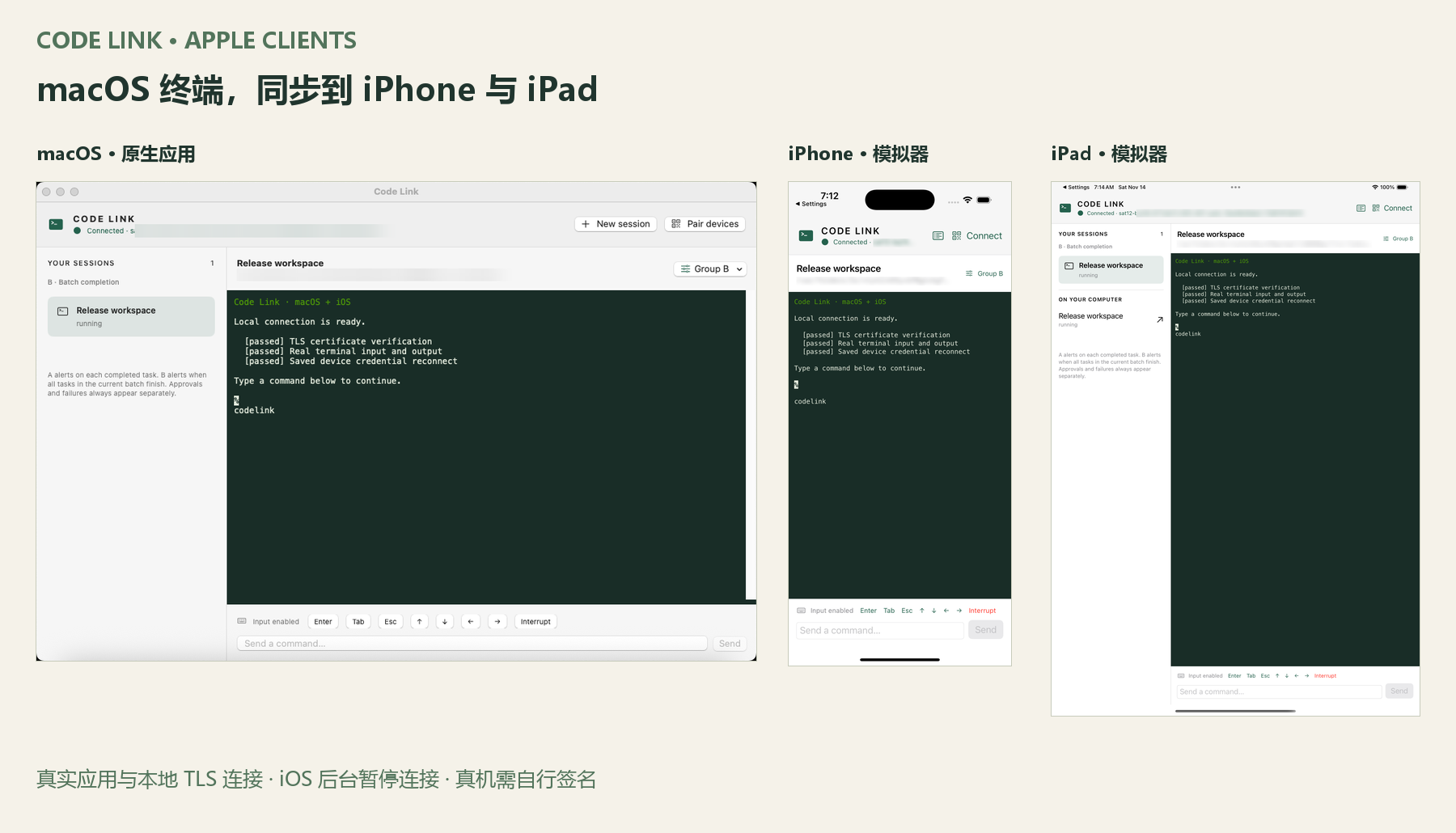
Apple clients use LAN connections. Read the macOS / iOS guide; verify Apple packages with APPLE-SHA256SUMS.txt.
| Platform | Download | Requirements |
|---|---|---|
| Windows x64 | Windows ZIP ↗ | Runtime included; extract all files |
| Android 9+ ARM64 | Android APK ↗ | Allow sideloading; phone list/detail and tablet two-pane layouts |
| Simplified Chinese | Windows zh-CN ↗ / Android zh-CN ↗ | Use en for English; language variants share the same app identity |
| macOS 14+ | Apple silicon ↗ / Intel ↗ | Runtime included; not notarized |
| iOS / iPadOS 17+ | Simulator ↗ / Xcode source ↗ | Simulator or personal signing; no directly installable IPA; connection pauses in background |
The Android APK uses a development signing key; Windows executables are unsigned. Compare your downloads with SHA256SUMS.txt. See the installation guide for details.
| Need | Windows + Android | Mac / iOS |
|---|---|---|
| Connect an existing terminal window | Supported; Windows Terminal follows the active tab | Mac manages sessions created in Code Link |
| Alerts after switching apps | Android foreground service; background and notification permission required | iOS pauses in the background and reconnects on return |
| Connection | Internet remote access, USB, classic Bluetooth, LAN | LAN; physical cross-device acceptance pending |
A / B NOTIFICATIONS
Open Background & alerts to allow banners and background operation. Android notification settings and Do Not Disturb still apply. The banners below were captured during hardware testing of the Chinese edition.
| Connection | Setup | Validation |
|---|---|---|
| Internet | Encrypted iroh connections; direct when possible, free relay fallback | Campus-network PC to hotspot / mobile data; unplugged screen-off alert and phone controls verified |
| USB | USB debugging and computer authorization | Hardware input, background notifications and one 89-minute connection |
| Bluetooth | System pairing and app trust; no PAN required | Hardware input and reconnection |
| Local network | Reachable LAN and app pairing | Implemented; hardware acceptance pending |
The public relay forwards encrypted data; tasks and state stay on your PC. Availability depends on your network and the relay service. Overnight remote operation has not been validated. Existing Windows Terminal mappings follow the active tab. External windows provide readable text; task completion requires supported status markers. Use clink codex for structured turn and approval events. macOS supports sessions created in Code Link; iOS uses LAN and pauses in the background. Linux and WSL remain unvalidated.