WORKFLOWS · WINDOWS + ANDROID
Use an Android tablet for Windows terminal tasks and Codex approvals
Keep your editor in front and put terminal progress on the tablet beside you. This guide takes you from a first USB connection to three useful daily workflows.
Choose downloads ↓Start with one USB connection
- Get the matching Windows ZIP and Android APK from the download picker. Windows v2.0.0 includes the runtime. Extract the entire ZIP and open
CodeLink.exe; install and open the APK on Android 9 or newer. - Enable Android Developer options and USB debugging. Use a data cable, unlock the tablet and accept the computer authorization prompt.
- Choose Pair device → Connect over USB in Windows. The connection window shows progress and specific actions for missing, unauthorized or offline devices. Confirm that the tablet shows USB connected.
- Open a disposable PowerShell window. Select it on the tablet, or select the terminal and online device on Windows and choose Share with device. Send
echo hello, then Enter if needed. Both screens should showhello.
If Android connects but output stays empty, a terminal still needs to be selected. An online-device count confirms that the host sees a device; it does not replace the input-and-output check.
1. Handle a Codex prompt while working in your editor
You have an agent running on your PC and it pauses for your decision. With an existing Codex window selected, read the original terminal prompt on Android and send the answer or shortcut key. Existing-window capture keeps your current PC workflow intact.
For structured approval cards and turn status, start a managed session from the extracted Code Link directory. Install and authenticate Codex CLI on the PC first.
.\clink.exe codex --cwd "D:\your-project" --name "Project assistant" --new-windowChoose that session on the tablet. Review the request before accepting or declining it. A completion reminder marks an event; acknowledging it never approves a command. Code Link supplies the connection and interface; the local Codex installation runs the agent.
2. Watch independent jobs and return when the batch succeeds
For example, test a backend while a separate frontend builds. Run your normal commands in existing windows, or launch finite managed commands. The paths and tools below are examples: use your own projects, install their dependencies first, and run independent tasks.
.\clink.exe terminal --cwd "D:\projects\api" --name "API tests" --new-window -- dotnet test
.\clink.exe terminal --cwd "D:\projects\web" --name "Web build" --new-window -- npm.cmd run build
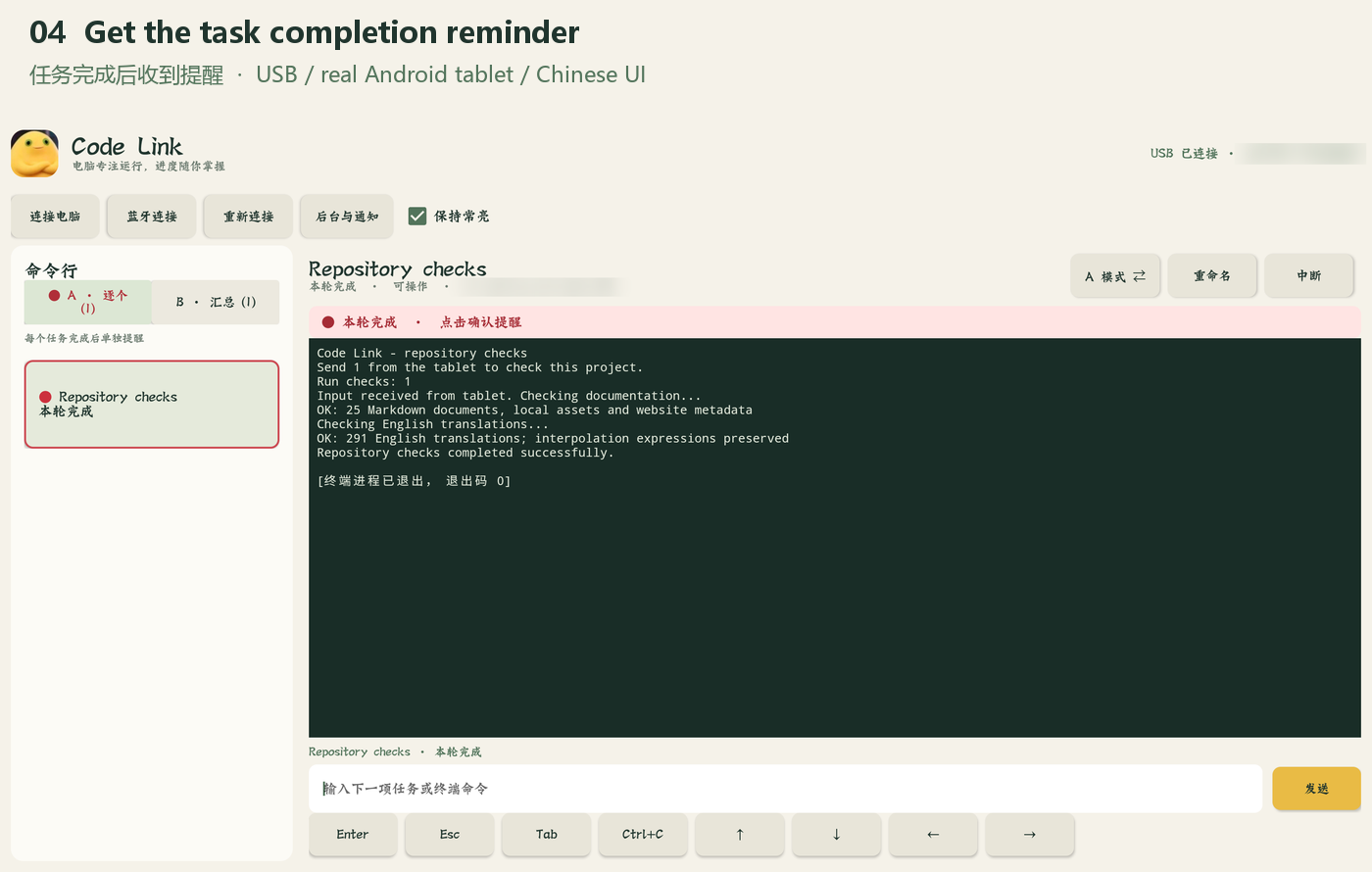
Managed finite commands report completion from the process exit code. Put both in B for a reminder after all participating jobs in that round succeed; use A when each job should alert independently. Idle terminals that never ran do not hold up B. Failed, disconnected, interrupted or unknown tasks do not count as success.
An interactive PowerShell window remains alive between commands, so its status depends on supported screen markers. For reliable finite-job results, launch the actual command as shown above. Existing Windows Terminal mappings follow the active tab; use separate windows for independent capture.
3. Give a spare tablet a permanent place on the desk
Keep the tablet in landscape beside your editor and leave Code Link in the Windows tray. Open More → Background & alerts on Android, then allow notifications, completion banners and background operation. You can switch Android apps while the connected-device foreground service continues receiving supported updates.
Start a short task with a known completion signal, switch Android apps and confirm its banner. Then try your normal workload. USB input, background delivery and an 89-minute connection were validated on a Lenovo Xiaoxin Pad Pro 12.7, Android 14 / ZUI 16. Your vendor's battery settings and Do Not Disturb can affect banners. Unplugging the cable or sleeping the PC interrupts live updates.
Choose the workflow that fits your devices
Code Link is strongest for an Android tablet beside a Windows PC, especially when you want to keep existing terminal windows. A second monitor is useful for full graphical applications; SSH is useful for server administration. Agent-focused mobile tools offer their own session workflows. Here the focus is local terminal output, input and task reminders on hardware you already have.
Mac supports sessions created inside Code Link and LAN connections. iOS is a developer preview, pauses its connection in the background, and needs a simulator or personal signing. Read the Apple capability and installation guide before choosing those packages.
Tell us where your first connection stopped
Try the echo hello round trip before a long task. When asking for help, include your Windows version, tablet model and Android version, package language, transport, terminal type, and the last step that worked. Keep pairing details and private terminal output out of screenshots.
Report your first-use result · Ask a question or share your workflow